# 페이지 URL 등록하기 (필수)
## 페이지 URL 등록하기 (필수)
그루비 서치를 이용하기 위해서는 사용하시는 쇼핑몰의 페이지 URL 등록이 필요합니다.
각 페이지에 대한 사용자 행동을 추적하는 용도이며, URL 입력 방법은 아래의 쇼핑몰 유형에 따른 URL 형식표를 참고하시기 바랍니다.
\
URL 등록이 필요한 페이지
* 상품 상세 페이지
* 검색 결과 페이지
* 주문서 페이지
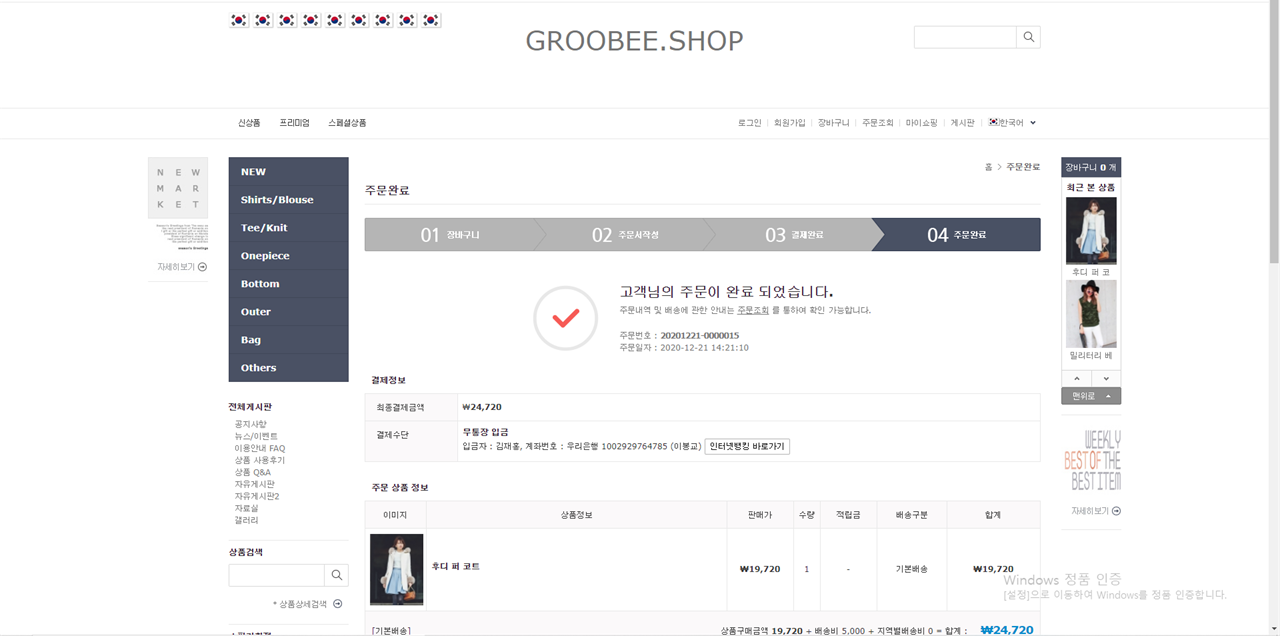
* 주문완료 페이지
\
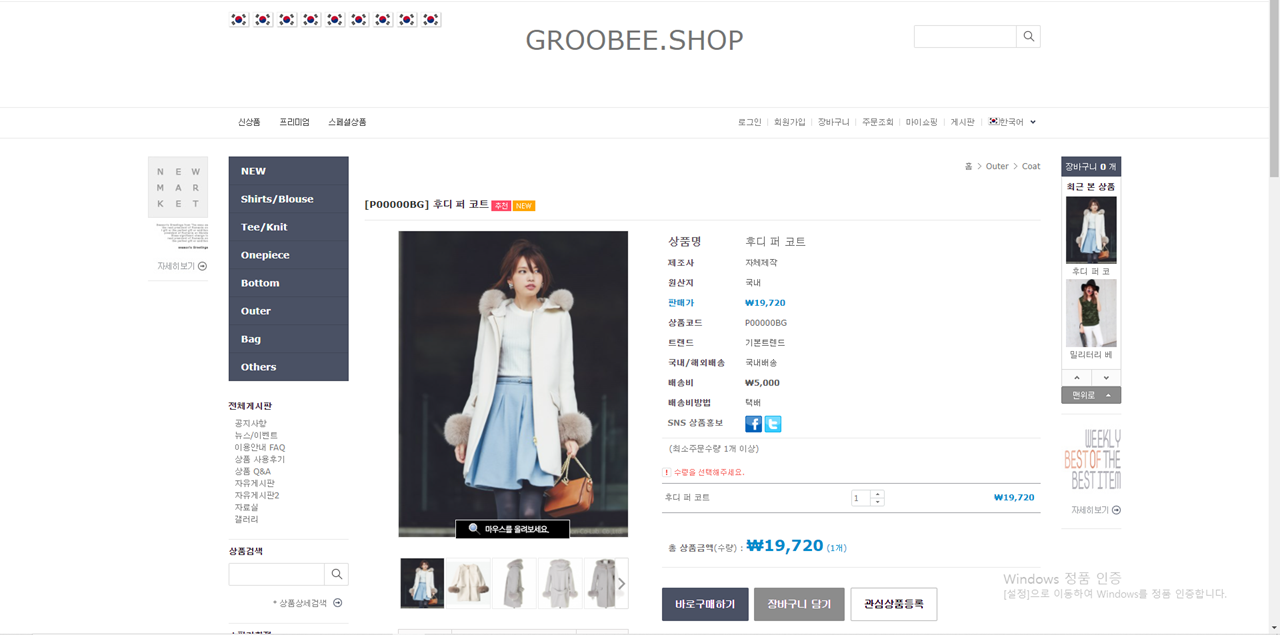
**상품 상세 페이지 URL 등록 방법**
***
1. 쇼핑몰 상품 상세 페이지로 이동합니다.
1. 'http\://', 'https\://'를 제외한 URL 주소 중 공통된 패턴을 복사합니다.
\* 쇼핑몰 유형별 URL 예시는 아래 표를 참고하세요.
| 쇼핑몰 유형 | 상품 상세 페이지 URL 예시 |
| ------------- | ----------------------------------------------------------------------------------------------------- |
| 카페24 | example.com/product/detail.html?product\_no= |
| 고도몰(e나무형) | example.godo.co.kr/shop/goods/goods\_view\.php?goodsno= |
| 고도몰 5 | example.godomall.com/goods/goods\_view\.php?goodsNo= |
| 메이크샵 | example.co.kr/shop/shopdetail.html?branduid= |
| 기타(자체 제작 쇼핑몰) | [www.example.co.kr/product/view.asp?ProductNo=](http://www.example.co.kr/product/view.asp?ProductNo=) |
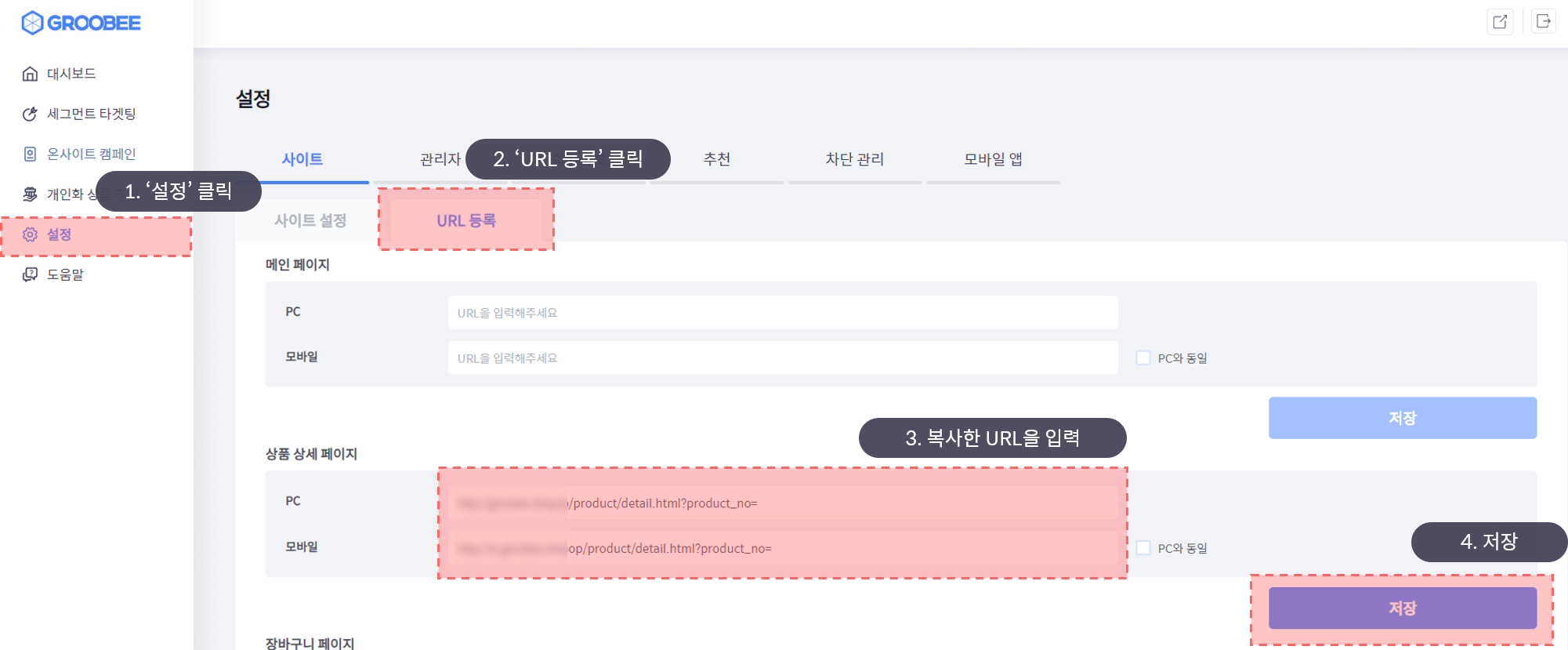
1. 설정 화면으로 이동하여 복사한 URL 값을 입력한 후 '저장' 버튼을 클릭합니다.\
(PC와 모바일의 상품 상세 페이지 URL이 다른 경우 각각 입력합니다)
\
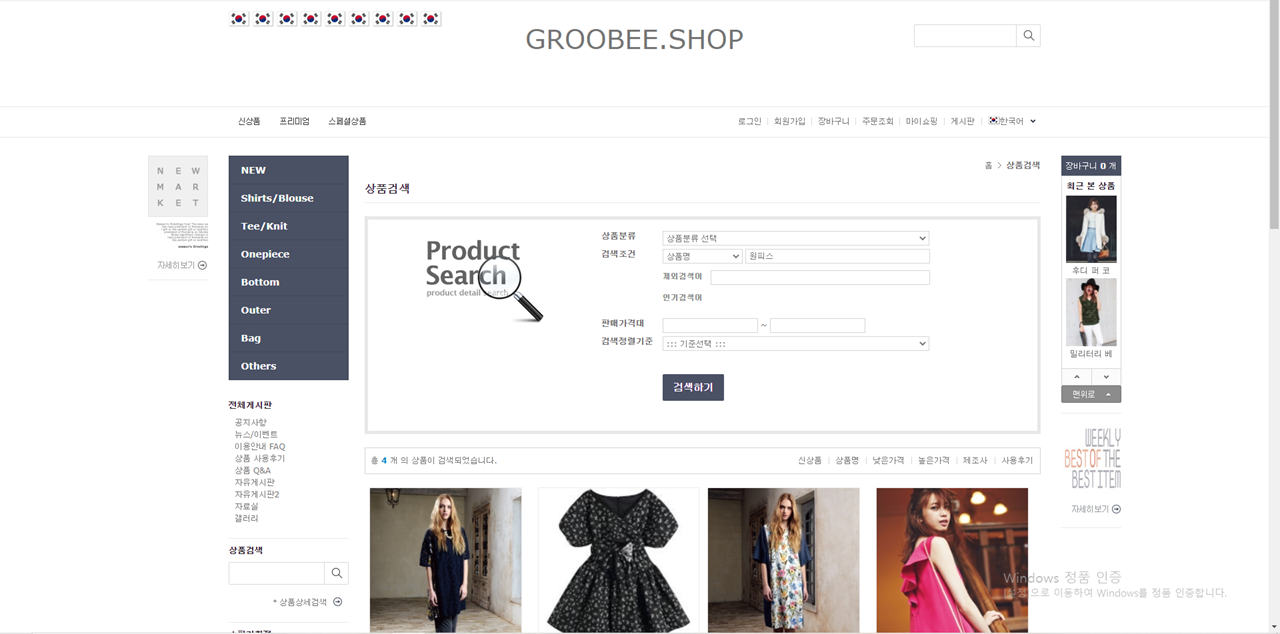
**검색 결과 페이지 URL 등록 방법**
***
1. 쇼핑몰 검색 결과 페이지로 이동합니다.
1. 'http\://', 'https\://'를 제외한 URL 주소 중 파라미터(?뒤에 나오는 URL주소)를 제외한 값을 복사합니다.
\* 쇼핑몰 유형별 URL 예시는 아래 표를 참고하세요.
| 쇼핑몰 유형 | 검색 결과 페이지 URL 예시 |
| ------------- | ---------------------------------------------------------------------------------------------------- |
| 카페24 | example.com/product/search.html |
| 고도몰(e나무형) | example.co.kr/shop/goods/goods\_search.php |
| 고도몰 5 | example.godomall.com/goods/goods\_search.php |
| 메이크샵 | example.co.kr/shop/shopbrand.html |
| 기타(자체 제작 쇼핑몰) | [www.example.co.kr/search/search\\\_result.asp](http://www.example.co.kr/search/search\\_result.asp) |
1. '설정' > 'URL 등록' 화면으로 이동하여 복사한 URL 값을 입력한 후 '저장' 버튼을 클릭합니다.\
(PC와 모바일의 검색 결과 페이지 URL이 다른 경우 각각 입력합니다)
\
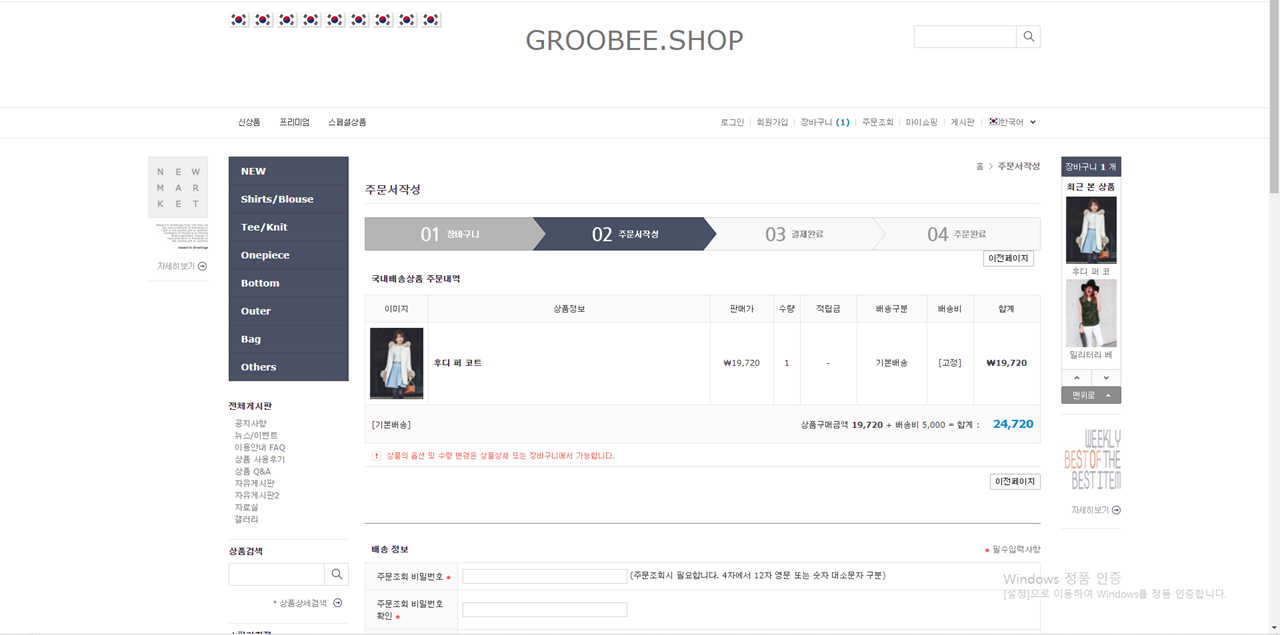
**주문서 페이지 URL 등록 방법**
***
1. 쇼핑몰 주문서 페이지로 이동합니다.
1. 'http\://', 'https\://'를 제외한 URL 주소 중 파라미터(?뒤에 나오는 URL주소)를 제외한 값을 복사합니다.
\* 쇼핑몰 유형별 URL 예시는 아래 표를 참고하세요.
| 쇼핑몰 유형 | 주문서 페이지 URL 예시 |
| ------------- | ------------------------------------------------------------------------- |
| 카페24 | example.com/order/orderform.html |
| 고도몰(e나무형) | example.godo.co.kr/shop/order/order.php |
| 고도몰 5 | example.godomall.com/order/order.php |
| 메이크샵 | example.co.kr/shop/order.html |
| 기타(자체 제작 쇼핑몰) | [www.example.co.kr/order/pay.asp](http://www.example.co.kr/order/pay.asp) |
1. '설정' > 'URL 등록' 화면으로 이동하여 복사한 URL 값을 입력한 후 '저장' 버튼을 클릭합니다.\
(PC와 모바일의 검색 결과 페이지 URL이 다른 경우 각각 입력합니다)
\
**주문완료 페이지 URL 등록 방법**
***
1. 쇼핑몰 주문완료 페이지로 이동합니다.
1. 'http\://', 'https\://'를 제외한 URL 주소 중 파라미터(?뒤에 나오는 URL주소) 값을 제외한 값을 복사합니다.
\* 쇼핑몰 유형별 URL 예시는 아래 표를 참고하세요.
| 쇼핑몰 유형 | 주문완료 페이지 URL 예시 |
| ------------- | ----------------------------------------------------------------------------------- |
| 카페24 | example.com/order/order\_result.html |
| 고도몰(e나무형) | example.godo.co.kr/shop/order/order\_end.php |
| 고도몰 5 | example.godomall.com/order/order\_end.php |
| 메이크샵 | example.co.kr/shop/orderend.html |
| 기타(자체 제작 쇼핑몰) | [www.example.co.kr/order/complete.asp](http://www.example.co.kr/order/complete.asp) |
1. '설정' > 'URL 등록' 화면으로 이동하여 복사한 URL 값을 입력한 후 '저장' 버튼을 클릭합니다.\
(PC와 모바일의 검색 결과 페이지 URL이 다른 경우 각각 입력합니다)
---
# Agent Instructions: Querying This Documentation
If you need additional information that is not directly available in this page, you can query the documentation dynamically by asking a question.
Perform an HTTP GET request on the current page URL with the `ask` query parameter:
```
GET https://docs.groobee.ai/old-admin/notes/groobee-search/undefined/url.md?ask=
```
The question should be specific, self-contained, and written in natural language.
The response will contain a direct answer to the question and relevant excerpts and sources from the documentation.
Use this mechanism when the answer is not explicitly present in the current page, you need clarification or additional context, or you want to retrieve related documentation sections.